
Common Android Phone Problems and Their Solutions
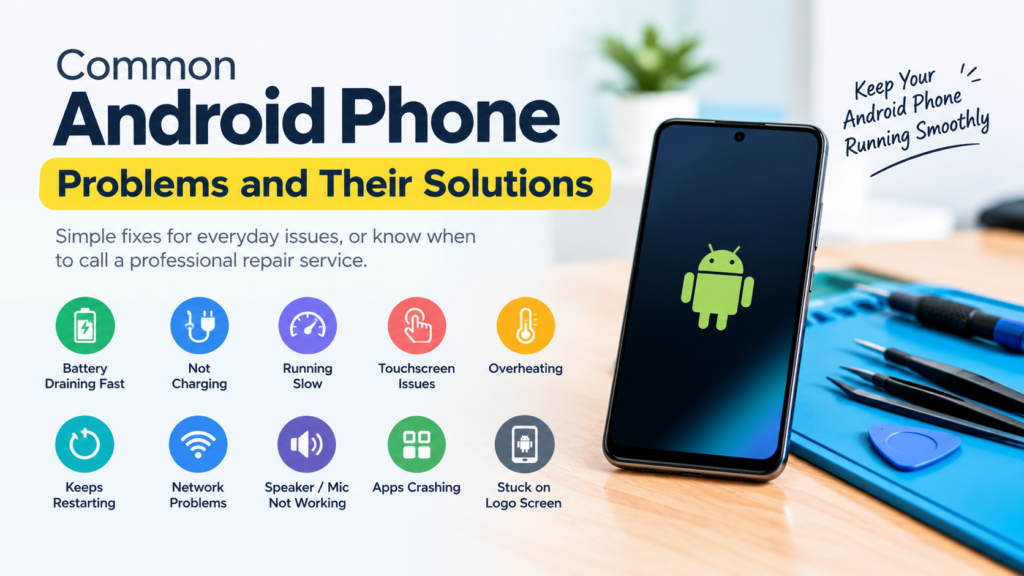
Android smartphones are an important part of everyday life. We use them for communication, work, online payments, entertainment, and many other tasks. However, like any electronic device, Android phones can develop problems over time.
Some issues can be fixed with simple troubleshooting, while others may require professional mobile phone repair services. In this guide, we will discuss common Android phone problems and their practical solutions.
1. Android Phone Battery Draining Fast
Fast battery drainage is one of the most common problems Android users experience. It can happen because of background apps, high screen brightness, an ageing battery, or software issues.
Solutions:
- Reduce screen brightness or enable adaptive brightness.
- Check battery usage in your phone’s settings to identify apps consuming excessive power.
- Close or restrict unnecessary background apps.
- Enable Battery Saver when needed.
- If the battery drains unusually fast even after these steps, have it checked by a technician.
2. Android Phone Not Charging
Sometimes, an Android phone may not charge properly or may take much longer than usual to reach 100%. This can be caused by a damaged charging cable, faulty adapter, dirty charging port, or battery problem.
Solutions:
- Try a compatible charging cable and adapter that you know work properly.
- Check the charging port for visible damage or debris. Do not insert metal objects into it.
- Restart your phone and check whether charging resumes.
- If the phone becomes unusually hot, disconnect it from the charger.
- If the problem continues, a technician can inspect the charging port, battery, and internal charging components.
3. Phone Running Slowly
An Android phone may become slow when storage space is low, too many apps run in the background, or the device has limited memory. Outdated software can also affect performance.
Solutions:
- Restart the phone.
- Remove unused applications.
- Free up storage by deleting unnecessary files or backing them up elsewhere.
- Update your apps and Android software when compatible updates are available.
- Avoid installing applications from untrusted sources.
If the phone remains slow after troubleshooting, professional diagnosis may help identify a hardware or software issue.
4. Touchscreen Not Working Properly
A touchscreen may stop responding, register incorrect touches, or develop dead areas. Common causes include a damaged display, moisture, a faulty screen protector, or a software issue.
Solutions:
- Clean and dry the screen with a soft cloth.
- Remove the screen protector temporarily if it appears to interfere with touch sensitivity.
- Restart the phone if the display still responds to basic controls.
- Check for visible cracks or signs of liquid damage.
- If certain areas remain unresponsive, the display or touch digitizer may need professional repair.
5. Android Phone Overheating
Phones can become warm during gaming, video recording, navigation, or charging. However, frequent or excessive overheating may indicate a problem with an app, battery, charger, or internal component.
Solutions:
- Close demanding applications when they are not needed.
- Avoid using the phone heavily while charging.
- Keep the device away from direct sunlight.
- Use a compatible charger and cable.
- If the phone becomes extremely hot, disconnect it from power if safe, stop using it, and allow it to cool naturally.
Do not place an overheating phone in a refrigerator or freezer. If overheating continues, arrange a professional inspection.
6. Phone Keeps Restarting Automatically
Unexpected restarts can interrupt calls, work, and other activities. This problem may result from software bugs, faulty applications, insufficient storage, or hardware damage.
Solutions:
- Restart the phone and install available software updates.
- Check whether the power button is stuck or damaged.
- Uninstall recently installed apps if the problem began after installation.
- Check available storage space.
- Back up important data before considering a factory reset.
If the phone continues restarting or cannot boot normally, a mobile repair technician can investigate the cause.
7. Wi-Fi or Mobile Network Not Working
Network problems can prevent users from making calls, browsing websites, or connecting to the internet. The cause may be weak coverage, incorrect settings, a SIM card issue, or a service outage.
Solutions:
- Turn Airplane Mode on briefly and then turn it off.
- Restart the phone.
- Check whether other devices can connect to the same Wi-Fi network.
- Remove and reinsert the SIM card if the device supports this and it is safe to do so.
- Check network settings and contact your service provider if the problem continues.
If the issue affects multiple networks or the SIM is detected inconsistently, the phone may require further diagnosis.
8. Phone Speaker or Microphone Not Working
Speaker or microphone problems can cause unclear calls, low sound, or no audio during recordings. Dust, moisture, incorrect settings, or hardware damage may be responsible.
Solutions:
- Increase the volume and check the sound settings.
- Disconnect Bluetooth devices to ensure audio is not being routed elsewhere.
- Test the speaker with a ringtone or media file.
- Check microphone permissions for the relevant applications.
- Gently clean accessible openings with a soft, dry brush. Avoid liquids and sharp objects.
If the speaker or microphone still does not work, professional repair may be necessary.
9. Apps Crashing or Not Opening
Applications may crash, freeze, or refuse to open because of outdated versions, corrupted temporary data, insufficient storage, or compatibility issues.
Solutions:
- Restart the phone.
- Update the affected app through the official app store.
- Open the app’s settings and clear its cache, if available.
- Check for Android system updates.
- Reinstall the app if necessary, after ensuring important app data is backed up.
Clearing app data can remove saved settings or locally stored information, so use that option carefully.
10. Phone Stuck on the Logo Screen
A phone that remains stuck on its startup logo may have a software problem, a failed update, corrupted system files, or a hardware fault.
Solutions:
- Allow the phone some time to complete a recent update.
- Follow the manufacturer’s instructions for a force restart.
- If the problem started after an update, consult the manufacturer’s official troubleshooting guidance.
- Avoid attempting unfamiliar firmware flashing procedures.
- Seek professional help if the phone remains stuck.
A factory reset may erase personal data, and some recovery procedures can also cause data loss. Back up your data whenever possible before attempting them.
When Should You Visit a Mobile Repair Technician?
Basic troubleshooting can resolve many Android phone problems. However, professional repair is recommended when:
- The display is cracked or touch controls have stopped working.
- The phone does not charge despite testing a compatible charger.
- The device has suffered water or liquid damage.
- The battery is swollen or the phone becomes dangerously hot.
- The phone repeatedly restarts or cannot start properly.
- Network, speaker, microphone, or motherboard-related issues persist.
If the battery is swollen, stop using and charging the phone. Do not press, puncture, or attempt to remove it yourself.
Conclusion
Android phone problems can affect battery life, charging, performance, connectivity, sound, and everyday usability. Simple troubleshooting, regular software updates, and proper device care can help prevent or resolve some common issues.
When a problem continues despite basic troubleshooting, professional diagnosis can help identify the cause and determine whether a component needs repair or replacement.
Need help with an Android phone problem? Contact a qualified mobile phone repair technician for an assessment and suitable repair options.
Comments